- What is Apple Endpoint Security Framework?
Apple Endpoint Security Framework (or ES, for short) is a user-mode framework created by Apple as a response to deprecating kernel extensions (kexts). It was announced at WWDC19 along with DriverKit (hardware drivers) and Network Extensions (network-related activity). macOS 10.15 was the last version to support legacy kexts, though workarounds exist for current versions.
- Why is it relevant?
Well, the most important thing is that it's currently the only officially supported way to develop security solutions (and other drivers). No more kernel access for us :(. But it does bring some really cool features compared to the "old ways":
- runs fully in user-mode (with root privileges, but root is very limited on macOS due to System Integrity Protection (SIP));
- can be developed in any programming language that supports C FFI (e.g., Swift, Rust, Zig);
- can be debugged using a standard user-mode debugger (e.g., LLDB), and because it is a normal process, a breakpoint no longer halts the kernel;
- a crash inside the process does not crash the entire system; the process is silently restarted in the background;
- deep integration with the operating system: you get events for basically everything, and you can even intercept them.
The extension is bundled inside a companion app, which also acts as an (un)installer.
It provides two event mechanisms:
- notification: asynchronous, notifies clients about an event that happened, cannot be acted upon;
- authorization: synchronous, clients need to allow or deny the request.
- How can I get started?
In theory, you need custom entitlements from Apple to be able to build an ES app. You can request them here,
but don't expect a very fast response. The entitlement in question is com.apple.developer.endpoint-security.client for the companion app, and com.apple.developer.endpoint-security.client
for the extension.
We're going to run the app inside a VM anyway, so we can build with whatever entitlements we want, as long as we disable SIP and AMFI. We can also go the "legitimate" way and have Apple grant us the entitlement. I will describe both below:
-- Building the sample code from Apple
Apple provides a starting project here, which is great because it sets up the two targets (companion app and system extension), as well as necessary build settings. It has two modes: notify demo and auth demo. The latter is selected by default, but it can be switched by removing it from target membership and assigning the other one. After opening it in Xcode, we see an signing error:
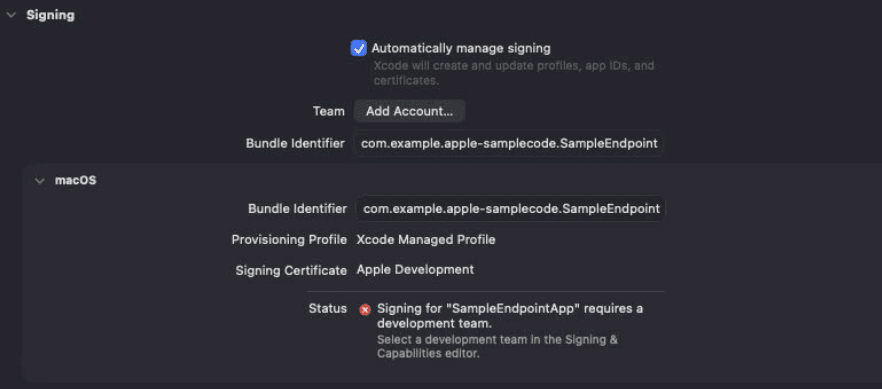
We can work around this by specifying a "hidden" build setting. Head to the project settings, click on the target (you need to do this for both targets), then click the plus
icon in the top-left and select "Add User-Defined Setting". Here, add a setting named CODE_SIGNING_ALLOWED with a value of NO, like this:
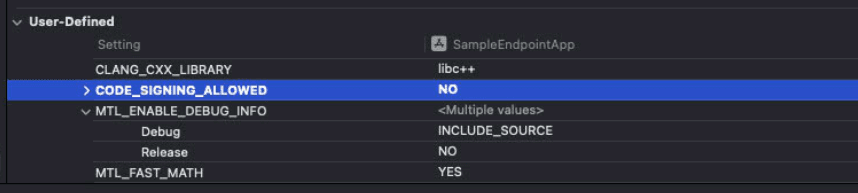
Now build the app, and it works! Well, partially. The app doesn't contain any code signing information, which will be an inconvenience later.
-- (Optional) Going the intended way with Apple signing
If you already have the entitlement assigned to your account, you can create a new Identifier containing it. Head to the Developer portal, Identifiers section
and create a new identifier. Select App IDs, then App. Type the name of the bundle ID in the proper field (making sure explicit is selected) and add a description. From the Capabilities
list, select Endpoint Security. It should look like this:
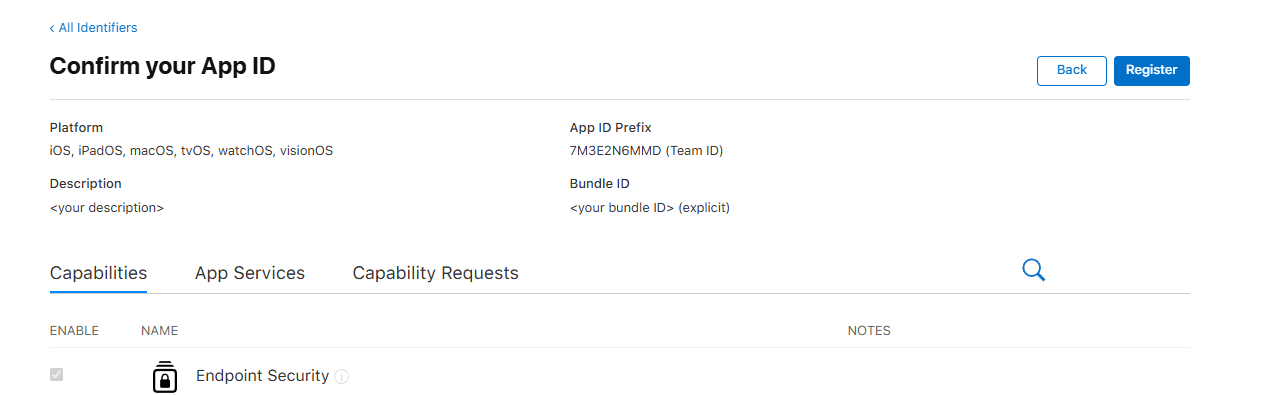
After clicking Register, you should be able to build the app without any error (and without the previous "hack"). This also signs it properly.
- Configuring the VM
It is strongly recommended to test inside a VM. Do NOT disable security features on your main OS.
I use Parallels for virtualization, but you can use any solution, such as UTM.
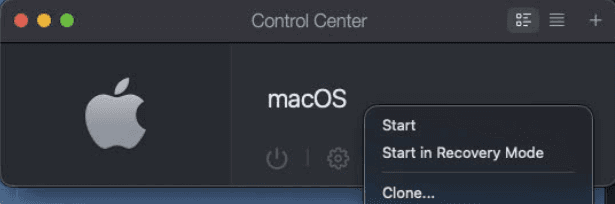
First we need to disable SIP. For this we have to boot the VM in recovery mode. In Parallels this can be done by right-clicking the VM:
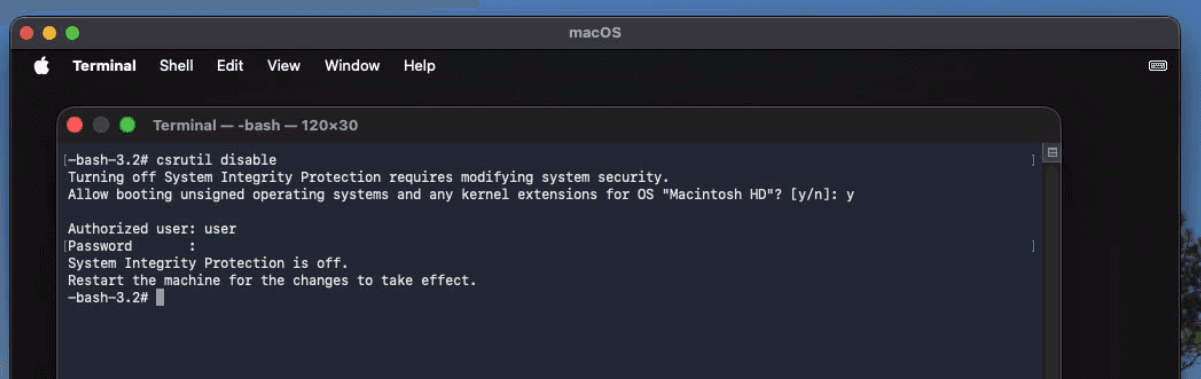
After it boots, select Options and then Continue. From the menu bar, select Utilities, then Terminal. Type csrutil disable, confirm the change and enter your credentials. It should look like this:
We also need to disable AMFI. Reboot the VM (by using the Apple menu or by typing reboot) and enter macOS normally.
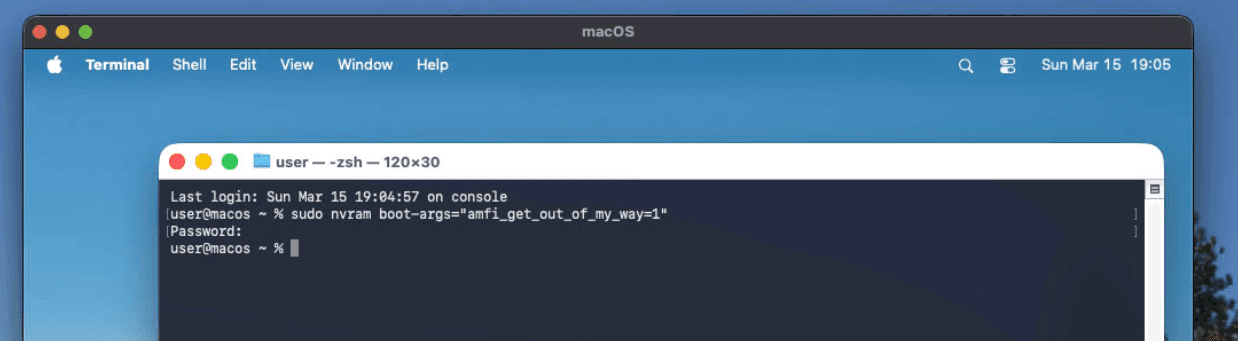
Open the Terminal app and run sudo nvram boot-args="amfi_get_out_of_my_way=1". Then reboot again.
The VM is ready to run our app! However, (at least in the current version of Parallels), we cannot drag-and-drop files from host to guest. There are many solutions for this, but the easiest one I found is creating a SMB share on the host.
-- Sharing files between host and guest
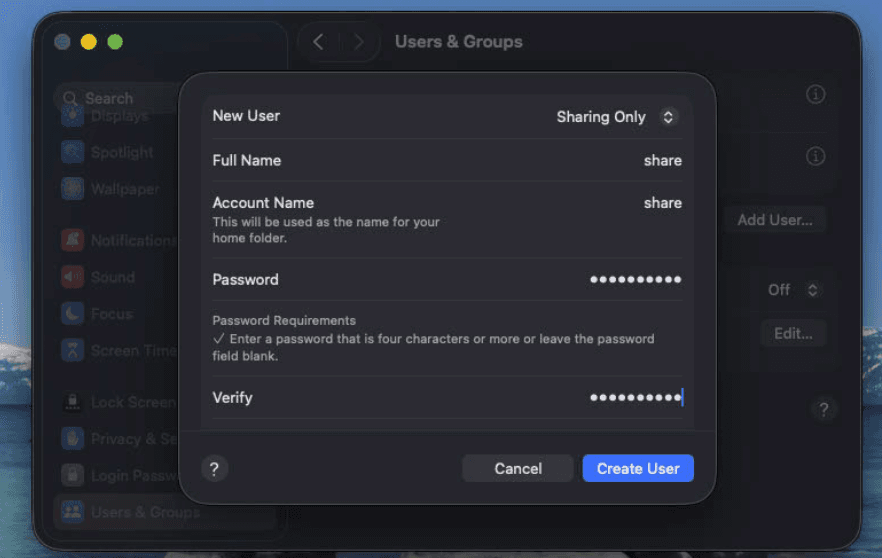
Create a new user on your host machine, with type "Sharing Only", like this:
Now we need to find where Xcode builds our project. In the sidebar, expand the Products folder, then right-click any of the products and select "Show in Finder". Go to System Settings, General, Sharing, enable File Sharing and click the plus icon to add another entry. In the first window hover over the "Debug" title until it shows a little folder icon, and drag it to the new window. In the right pane add the user we just created and grant it View Only rights. Make sure you don't remove yourself from the list, as you won't be able to access the folder.
Back to our VM, in Finder go to the Network item in the left pane and find the host there. Select Connect As... and log in as the user we created. We should see the built app there!
If the host does not show in the Network section, select Go from the menu bar, then "Connect to Server" (shortcut: Command-K) and type smb://<host ip>.
-- Signing the app (or enabling developer mode)
If you don't have the entitlement from Apple, you need to do one last step in the VM. Because the project code signing was disabled, the system will reject the ES extension installation request. You have two options:
- Run
systemextensionsctl developer oninside the VM; - Sign the extension manually using
codesign(can also be inserted as a Build Phase script). The syntax iscodesign --force --deep -s - --entitlements <path to entitlements> <path to binary>. You need to do this once for the main app, and once for the system extension insideYourApp.app/Contents/Library/SystemExtensions/YourExtension.systemextension. The entitlement files are already present, Xcode just ignored them because we told it so. Make sure you select the correct entitlements file for each target.
Now it's the best time to take a snapshot of the VM. In the menu bar select Actions, then Take Snapshot.
-- Running the app
There are two products, the app and the extension. But the extension is also bundled inside the app, which is a requirement for new style extensions. They also need to be run from the
Applications directory. Drag-and-drop the .app into the Applications folder and run the app. It should prompt you to authorize the extension from System Settings. After that, we should get a success message:
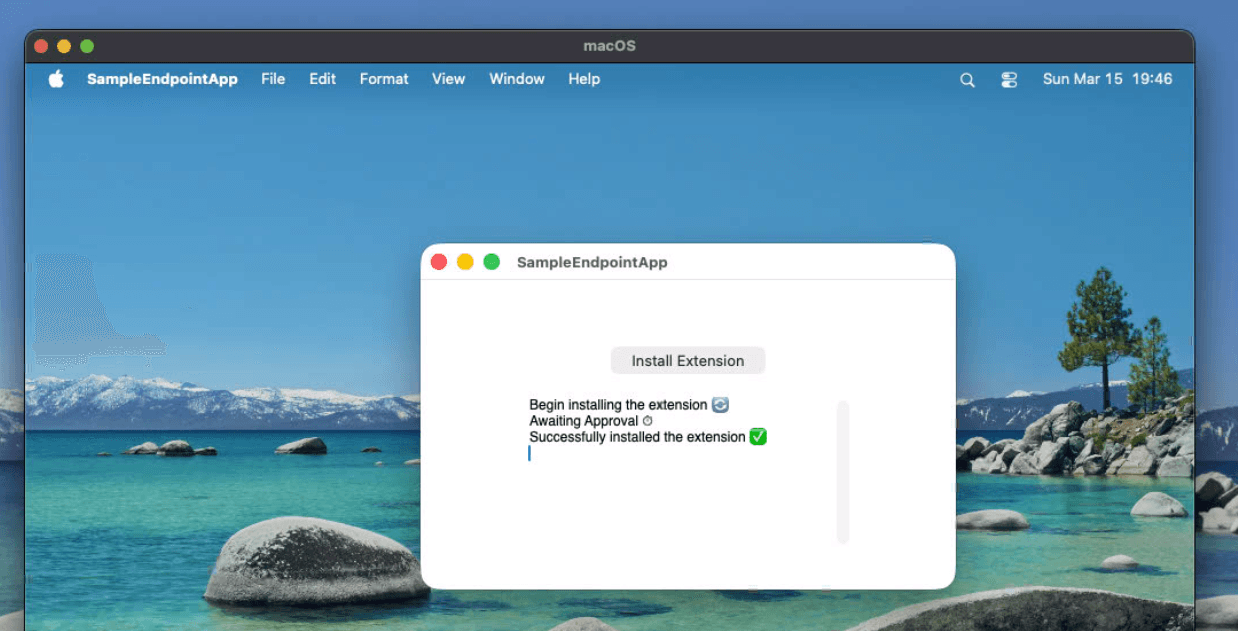
The sample code prevents us from opening TextEdit. Try launching it, you'll get an error! That means the extension is working.
-- Debugging the app
The process is quite simple (in theory): copy debugserver to the VM, attach to the extension, then on the host connect to the debugging session. In practice, it requires quite a few steps.
First we need to configure Xcode to show the remote debugging UI. On the host, run defaults write com.apple.dt.Xcode IDEDebuggerFeatureSetting 12 and restart Xcode.
We need to copy debugserver to the VM, which is located in /Applications/Xcode.app/Contents/SharedFrameworks/LLDB.framework/Versions/A/Resources/debugserver. We can use the shared SMB folder, copy it
to the VM, then take a snapshot.
We need the IP address of the host machine. First, in the VM, run ifconfig and notice the subnet of its IP. Then, on the host, run ifconfig and get the IP of one of the bridge<number> adapters that is in the
same network as the VM. Ping it from the VM to make sure it works.
In the VM (with the extension running), run ps aux to get the PID of the extension. Then run sudo /Applications/debugserver <host IP>:12345 --attach=<pid> (you can use any port you want).
On the host, in Xcode, click the Scheme in the top pane, then Edit Scheme, then select the Run configuration. Select "Custom LLDB commands" and type process connect connect://<VM IP>:12345. Close the window and Run the project.
It's going to take some time to connect, but you should land in a breakpoint once it does. Click Continue from the debugger (lower pane).
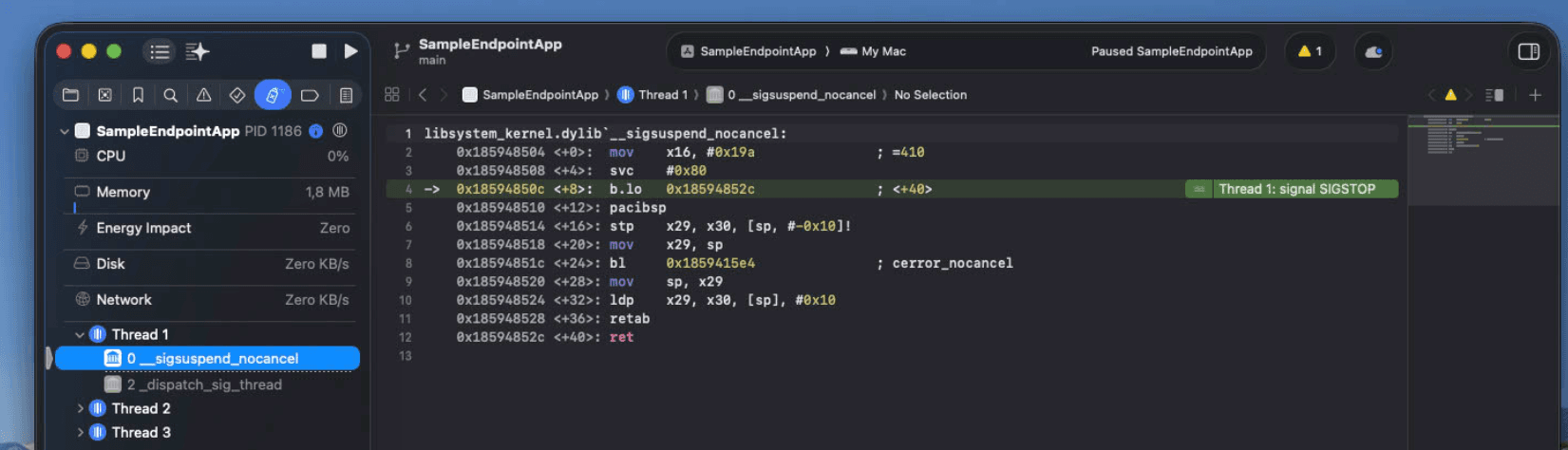
You can now use Xcode to place breakpoints and debug it like a normal app! Take care when placing breakpoints inside authorization requests, as they have a deadline, after which the system will automatically drop the request.